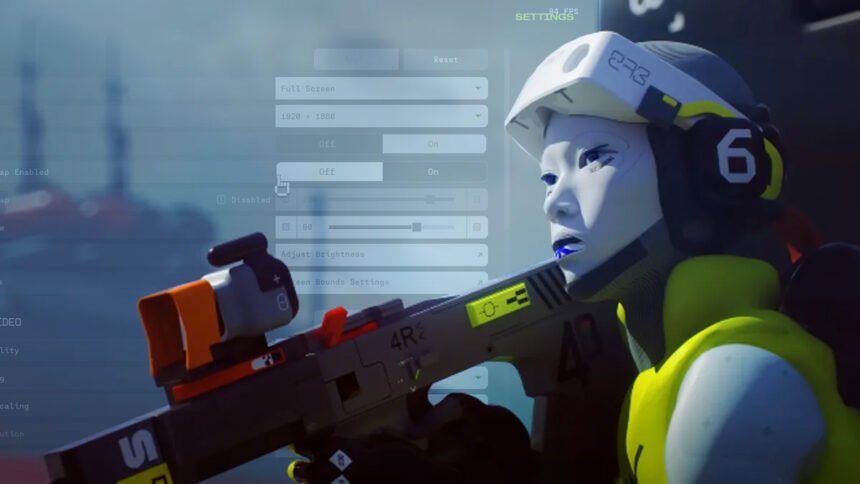
What are the best Marathon settings for PC? Bungie’s new extraction PvP shooter is one stylish addition to the multiplayer fps space, and thankfully, it’s not too demanding to run. We’ve fired up the early Marathon Server Slam – running until March 2 – and tested the game to find the best graphics and other settings to optimize this title for a typical mid-range PC.
It’s still too early to tell if Marathon will end up being one of the best FPS games when the full Marathon release date rolls around on March 6. However, when the Marathon system requirements dropped, it was clear this wasn’t going to be the next Crysis, when it came to GPU demands, so the best graphics card wasn’t going to be a requirement. Steam Deck users are out of luck, for now, though.
Best Marathon settings for PC
Video/Graphics
- Vsync: On
- Frame rate cap: Off
- Field of view: 90°
- Brightness: Default
- Screen bounds: Default
- Graphics quality: High
- Anti-aliasing: DLSS (or FSR for AMD graphics cards)
- Resolution scaling: DLAA or FSR Native AA
- Screen space ambient occlusion: Medium
- Anisotopic filtering: 4x
- Texture quality: High
- Shadow quality: High
- Environment detail distance: High
- Character detail distance: High
- Foliage detail distance: High
- Light shafts: Medium
- Motion blur: Off
- Chromatic aberration: On
- Nvidia Reflex: On
- UI refresh rate: High
As a shooter with a competitive, PvP multiplayer element to it, Marathon is a game where it’s important to get a reasonably fast frame rate with clean visuals. However, it’s not quite as performance-focused as a true esports title, like CS2 or Valorant, and a lot of the fun of the game is its atmosphere, so it’s worth balancing speed and visuals.
For our RTX 4070-based test rig, this means that, playing at 1080p, we’ve opted to recommend choosing the High graphics preset and only changing a couple of other settings. Those settings are switching DLSS upscaling from dynamic to DLAA – to ensure the game is always running at full resolution – and turning off motion blur. The latter is too much of a distraction in a competitive shooter.

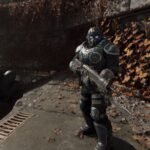
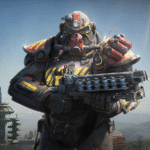
With these settings, our system hit a steady 84fps average with 60fps 1% lows. Interestingly, lowering the graphics preset to Low and pushing it up to Highest hardly had much effect at all on frame rates – just a few fps here or there. You can somewhat see why in the image above, which shows the game in its Low, High, and Highest presets. There’s not that much difference, though you can see how the lowest setting has a much cleaner look, with less fog and no rain effects, which could be beneficial for gaining a competitive edge.
If you do find you’re struggling to get a fast enough frame rate, I’d recommend dropping to the Low preset and dropping DLSS to Balanced.
Best Marathon Sound settings
- Game volume: 10
- SFX volume: 8
- Dialogue volume: 5
- Lobby music volume: 7
- Gameplay music volume: 5
- Voice chat volume: 7
- Mute when not focused: Off
Like The Finals, Marathon is a game that really emphasises atmosphere and a vibe, and, along with its stylized look, a large part of that is down to its sound and music. As such, I do recommend keeping music on to some extent. However, it can be a bit distracting mid-game, so it’s worth turning down the music a little. The settings above and below are the ones I found worked for me.

If you’re playing in an even more competitive way, you may even want to turn music off completely.
Marathon Steam Deck compatibility
Marathon requires BattleEye anti-cheat, which currently doesn’t work on Linux, or at least not on the Steam Deck. As such, Marathon is not Steam Deck compatible.
However, other Windows gaming handhelds, such as the Asus ROG Ally and Xbox Ally X will run it. As its not too demanding, it should run well too, though the best gaming handhelds with the latest, fastest processors, such as the Xbox Ally X, will copy better.
Does Marathon need an SSD?
Marathon doesn’t require an SSD to run. However, I’d always recommend installing a reasonably demanding game like this on an SSD instead of a hard drive, as it will be better for game load times. You can check out our best gaming SSD guide for some recommendations, but you won’t need a particularly fast drive to see most of the benefits of an SSD over a hard drive.
How to monitor performance in Marathon
If you want to keep an eye on performance in Marathon, it’s easy to do, whether you’re using an Nvidia or AMD graphics card. The game has an in-built FPS counter so you can get immediate feedback to check whether graphics settings changes have worked.
Alternatively, if you’d like to get a bit more information, you can enable performance monitoring a few other ways. For Nvidia cards, you can install the Nvidia App and enable the in-game overlay, then hit ALT + R while you’re in-game to bring up the performance monitor. With AMD cards, you can enable performance monitoring via the Radeon overlay using the shortcut CTRL + SHIFT + O.
Alternatively, you can download free software such as CapFrameX or Nvidia Frameview, to record frame rates over time. However, Frameview doesn’t play well with this game, currently. It caused the left-click of my mouse to stop responding properly, and the fps counter overlay doesn’t work. You can still record frame rates, but you’ll get no visual cue that recording has started or stopped.