Verdict
Combining a gaming keyboard with a Stream Deck is going to be a dream setup for some, but not a game-changer for most. However, this keyboard is really well made and brings masses of functions to your fingertips for a price that, while high, is actually reasonable value.
- Great build quality
- Stream Deck brings loads of functions to your keyboard
- Really nice animations/images on the OLED screens
- Stream Deck buttons make for a bad numpad
- Stream Deck functions only work when app is loaded
- High price
In what seems like one of the longest-gestating product developments of recent times, eight years after Corsair bought streaming deck-maker Elgato, it has finally combined the deck tech with a keyboard to create what it hopes will be the ultimate all-in-one desktop device. The Corsair Galleon 100 SD smashes an Elgato Stream Deck onto the side of a mechanical gaming keyboard, where it doubles as a numpad and brings its programmable buttons within even easier reach.
With Corsair consistently making some of the best gaming keyboard options, and Elgato basically being king of the best stream deck, the pedigree here is second to none. But is a combination of Stream Deck and keyboard the future of gaming input? Well, that depends on just what you’re hoping to get out of a device like this.
Specs
| Corsair Galleon 100 SD specs | |
| Dimensions (mm) | 446 x 159 x 18- 38 (W x D x H) |
| Weight | 1.392kg / 3.07lbs |
| Format | TKL with Stream Deck numpad |
| Connection | Wired/USB-C |
| Polling rate | 8,000Hz |
| Switch type | Corsair MLX Pulse mechanical |
| Switch life | 80M |
| Analog key actuation | No |
| Backlighting | Yes, RGB |
| Extras | Two USB-A to USB-C cables, USB-C passthrough, magnetically-attached wrist rest |
Features
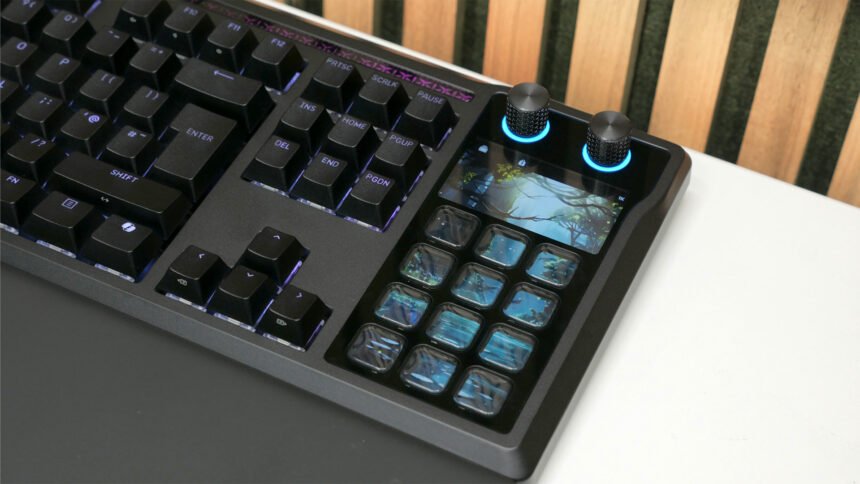
As an overall form factor, the Galleon 100 SD looks like a conventional full-size keyboard, but instead of a numpad, you get a section containing 12 programmable OLED buttons, a 2.75-inch 720 x 384 pixel OLED display, and two dials.

The dials are programmable, but by default, the right one is used to control volume (tap to mute) while the left one jogs between the different ‘pages’ of the interface below (tap to go back to the home screen). These pages incorporate the 2.75-inch screen and the OLED displays built into each of the 12 buttons below. You can program as many pages as you like, with many default ones included and loads of official Stream Deck plugins also available for adding extra game or app-specific functions to these pages.
So, for instance, you can download a Photoshop plugin that includes a whole bunch of icons for commonly-used Photoshop commands, which you can then place onto your preferred button, for easy one-click activation. That’s all if you install Elgato’s Stream Deck software.
Without the Stream Deck software running on your PC, the keyboard defaults to its Hardware Mode, where the numpad section just shows numbers or, with a tap of the left dial, it will show a selection of shortcuts (as shown below).

The latter consists of typical gaming keyboard extra button features, such as media controls, mic mute, a profile switcher, and a game mode (turns all the lighting red and turns off the Windows key). Plus, there are some other extras, such as being able to change the polling rate, switch keyboard lighting themes, and you can separately change the brightness of the keyboard or the numpad section. When left idle, the whole numpad display section can show animations or images.
Elsewhere, this keyboard is a wired-only model, with a USB-C port on the back for connecting to your PC via the included USB-A to USB-C cable. Corsair also provides a second cable and a second port on the back of the keyboard, which allows it to offer USB passthrough. Interestingly, Corsair has made this passthrough port a USB-C, rather than USB-A, indicating the gradual shift we’re finally seeing in peripheral makers using USB-C cables and dongles.

It’s also interesting to note that Corsair has provided two completely separate cables for this function, rather than a single cable with two plugs on each end. This means you potentially have three cables sprouting from the back of this board if you use the passthrough feature.
Included in the box alongside the cables is a padded, magnetically attached wrist rest and a keycap and key switch removal tool.

Speaking of keycaps and keys, this board uses Corsair’s own MLX Pulse ‘thocky’ key switches. These are conventional mechanical switches, rather than optical or Hall Effect switches, so they don’t offer analog control, but Corsair does rate them to last 80m keystrokes, plus they incorporate a Fresnel lens in the clear casing of the switch to better direct their RGB lighting through the keycaps.
These 5-pin swappable switches have a 45g activation force with a 2mm activation point, and they come pre-lubricated for a smooth operation. Corsair also claims these linear switches offer “Hi-Fi” acoustics, with a distinct ‘thocky’ mechanical keyboard sound, rather than a higher-pitched rattly sound or aiming for as silent a switch sound as possible, such as with the Be Quiet! Dark Mount keyboard.
In terms of gaming performance, this keyboard features an adjustable polling rate of up to 8kHz and includes the company’s Flashtap SOCD feature, which is a variation of the Snap Tap feature originally found on a lot of analog keyboards. When engaged, this feature has the keyboard automatically switch back to the previously-pressed key after you’ve released your current key, allowing for ultra-fast alternating between those two inputs. By default, it’s set up to work with the A and D keys (ie strafing keys), so if you hold down A then just tap D, the keyboard will automatically switch back to A the moment you’ve released the D key.

Flashtap and its equivalents have been a massive disruptor to certain competitive games, such as Valorant and CS2, as they provide ultra-fast strafing. In fact, it’s even a banned feature in CS2. Regardless of how you feel about it, the option’s there if you want to use it.
Wrapping up the rest of the core features, the keyswitches offer fully programmable RGB backlighting, plus there’s a light bar just above the keys as well. The keycaps are also doubleshot – so the legends are formed from a second layer of plastic, rather than just painted on – and made from hard-wearing PBT plastic, so the legends should never wear away.
Design, build, and comfort
Corsair’s K-series mechanical keyboards are legendary as among the first big-brand gaming keyboards to include an aluminum top plate. The fairly coarsely-brushed, thick slab of aluminum immediately gave those first-generation boards a sense of “this is aluminum and feels premium because of it.” Corsair toned down that feeling with its last redesign, and now it has changed up its keyboard design again, but, at least based on my first impressions of the Galleon 100 SD, not entirely for the better.
Upon taking this keyboard out of the box, I was utterly underwhelmed at its design and apparent build quality. The new look has chamfered edges and a smoother, more subtle, integrated feel than before. Crucially, you would never actually guess that the top plate is, in fact, still aluminum. It just looks like plastic.

Add in that the keycaps have a black finish that doesn’t quite match the frame of the board – they’re a little darker and shinier – and you have a keyboard that, particularly in the bright lights I use to photograph products I review, really didn’t impress.
Not helping is that, for a while now, Corsair has tended to ship its keyboards with an RGB lighting profile that is lacking in punchiness or a particularly eye-catching theme (see the lack of backlight brightness in the image above). A far bolder, more impactful color scheme would really help that initial impression.
It’s a good thing, then, that once I had set this keyboard down on my desk in sensible office lighting and found a lighting scheme/theme that I liked, the design of this board grew on me.
The smooth finish and chamfered edges of the outer casing are more comfortable to handle than the old brushed aluminum, while the overall build quality of the board is improved, too. There’s very little flex to it, and it feels really solid rather than having a hollow, empty feel and sound.
It’s still not a design that I feel quite competes with the likes of the Glorious GMMK 3 or even the simpler, cleaner lines of the Razer Huntsman V3 Pro, perhaps, but it’s a tidy enough looking option.

The real kicker for the design of this board is the animations Corsair has added to the Stream Deck section. There’s a sakura-like theme that you can pick, which adds a pink blossom-filled image to the top display, above the numpad/shortcut buttons, but then, after the numpad has been left untouched for a while, it shows a charming (if likely AI-generated) woodland scene that genuinely brings me joy every time I glance at it.
Keyboard performance
Overall typing performance of this board is excellent. Those ‘thocky’ keys feel fantastic, with an ultra-smooth action and snappy response that was more pronounced than I was expecting. I really enjoyed typing on this keyboard, even preferring it to the Be Quiet! Dark Mount that has been my blessedly silent daily driver since I reviewed it.
In terms of sound, though, this keyboard is quite loud, hitting around 62dB (measured from 20cm above the board) when typing vigorously. There is a quality to the sound that is less offensive than some keyboards, though. It’s a lower-pitched, well, ‘thock’ rather than a more hollow, tinny, or rattly sound.

However, when it comes to the Stream Deck buttons, it’s a much less positive story. They are not nice buttons at all to interact with. If you want an example of just why people get obsessed with keyboards and keyboard switches, the contrast between the ‘proper’ switches on this board and its Stream Deck switches perfectly demonstrates it. They’re wobbly and feel completely different when pressed in the middle or the edge, with the edge feeling soft and non-clicky while the middle has a distinct tactile bump.
Trying to actually use them as a numpad for quickly entering numbers and doing calculations is not fun. It also doesn’t help that the keyboard presents the 0 key in a different position depending on whether you’re in Hardware Mode or if you’ve loaded up the Stream Deck software and are using its numpad layout. You can reprogram the latter’s layout to match the Hardware Mode layout, but it’s a silly slip-up for them to ship mismatched.

Ultimately, the Stream Deck section fundamentally doesn’t really work as a replacement for a numpad if you’re used to using one regularly. If, though, you normally use a TKL or smaller-format keyboard and just like the idea of a Stream Deck offering this extra function for occasional use, the slightly unimpressive button response is far less of a concern.
It’s also worth bearing in mind that if you do prefer a TKL or smaller keyboard because of how it frees up room for your mouse, you miss out on that benefit here. A TKL board with a Stream Deck above it will likely be a more optimal setup if you like to maintain that space.

As for the wrist rest included with this keyboard, it’s excellent. Its padding is amply deep and cushioning, so that it really takes the pressure off your wrists. I still prefer a taller, aftermarket wrist rest for improving the angle of my wrists, but as included wrist rests go, this one is great.
Stream Deck performance
If you’re familiar with Corsair/Elgato’s Stream Decks, the one included here will feel right at home. It offers up all the same core features and uses the same Elgato Stream Deck software as any other Deck. In fact, that’s one of the initial, slight oddities with this board, which is that it works in those two different modes – Hardware Mode or Stream Deck mode.

The fact that you have to choose between them, and that the Stream Deck software just takes over control once loaded feels a bit awkward. That’s particularly the case, as you can only access the rather lovely themes on this board (ie, that sakura theme) when not using the Stream Deck software. It works as a setup if you only tend to use a Stream Deck for when streaming or using other specific apps, but if you just like to have it available at all times, you’ll be locked out of that standard Hardware Mode and its features.

On that note, I also encountered an annoying quirk of this setup whereby my PC had failed to shut down properly overnight and had gone into standby. When going to use the PC again, it needed me to enter my pin to unlock it, and I found that the keyboard had gotten stuck in Stream Deck mode, but on a page without number keys. As such, I wasn’t able to use the numpad to enter my pin. It’s a niche issue, but it was frustrating in the moment.

It’s also worth noting that you need to create an Elgato account to download plugins, and that the default configuration of the app requires loads of plugins to work. Even with installing all the initial plugins the app suggested, there were many buttons on the board left showing a question mark because the plugin wasn’t available/working.

Otherwise, the Stream Deck is as powerful as you want to make it, letting you program app shortcuts, perform system adjustments, write text, or combine all manner of functions together into one button press. The Stream Deck software also has plugins for hundreds of apps and games, making it effortless to assign functions to buttons and saving the need to memorize key shortcuts or perform complex key combinations.
For streaming, they remain a fantastic way to customize and optimize your streaming interface, allowing you to create the perfect visual cue on the button’s screen while attaching complex functions to one simple button press. I also know of several people who have their email signature or default replies to certain emails programmed in to their Steam Deck, so that a touch of a button just fills out the text for them.

However, I, for one, have never quite found a killer use case for a Stream Deck, in all the years that I’ve reviewed and tested them. For instance, in Photoshop, a lot of the most useful features that are replicated in the Photoshop plugin are ones for which I’ve long since memorized the shortcuts. Meanwhile, tools that I often find myself searching for aren’t included in the plugin.
It’s the same in many apps and games too, especially for situations where I find I nearly always want to have my hands on both the keyboard and mouse. It’s often just quicker to use the keyboard shortcut or click the button than move your hand to the Stream Deck, navigate to the right page, and hit the right button. It really does depend on whether you can identify a comprehensive set of functions that you perform regularly that you might be able to assign to a single key press.

Crucially, the inclusion of a Stream Deck on this keyboard didn’t to me meaningfully add much extra functionality to its use as a keyboard, other than cutting down on the number of extra media/programmable gaming keys that you might otherwise want. It’s not great as a numpad and doesn’t fall to hand any easier than a standalone Stream Deck.
It also doesn’t help that the Stream Deck software isn’t the simplest to use. It’s certainly comprehensive, and once you’ve got the hang of it, it’s intuitive enough, but it’s quite stark and unforgiving by default. For instance, I added a new page to the interface so that I could have one dedicated to Photoshop inputs, and by default, it didn’t even include the page navigation function of the top left dial. For all the other pages, you can scroll through them with that dial, but for a new page, you have to add in this feature, reassigning the function of turning left, turning right, and tapping the dial. It’s logical, but it’s not particularly user-friendly.

Still, this isn’t at all to say this is a bad device, but merely that Stream Decks have a very particular use case, and the inclusion of one here doesn’t immediately transform this keyboard into a whole new category of ultra gaming keyboard. But if you can identify why one will be of use to you, this keyboard certainly has one.
Price
The Corsair Galleon 100 SD price is $349.99 / £309.99, making this a very expensive keyboard, but for that money, you are also getting a Stream Deck. The cheapest Stream Deck is only $59, but that only includes 6 buttons and no extra screen or dials. For a larger model with screen and dials, you’re looking at $199. Based on that, this keyboard is actually decent value, if you know you’re going to use the Stream Deck.

Verdict
My thoughts on the Corsair Galleon 100 SD have swung wildly over my time with it. From initially finding it rather underwhelming in design and finding its Stream Deck features a bit awkward to set up, I then found I enjoyed the overall usability of the keyboard and was charmed by its screen animations.
However, once I delved deeper into trying to use the Stream Deck for more functions for work and gaming, I found I just didn’t use it that much. I don’t need a shortcut to launch Steam buried on the fifth page of my Stream Deck, I don’t need a dedicated emoji interface, I don’t want to remove my hands from my keyboard and mouse mid-game unless absolutely needed (i.e. for streaming interactions), and I do want there to be more functions supported in the Photoshop app.
Stream Decks have always been devices that reward you for putting time into setting them up and really optimizing them for your usage, and that hasn’t changed with this keyboard. It’s great if you need a Stream Deck and like the idea of one being incorporated into your keyboard, but without that dedication, you may just find you’re stuck with a bad numpad and some pretty lights.
For those convinced by the idea of this combination, though, there’s no denying it delivers. It’s a really nicely-built keyboard, the Stream Deck is physically integrated really nicely with it, and it’s actually decent value compared to buying a larger Stream Deck and keyboard separately. Just be aware of what a Stream Deck can and can’t do for your setup.